
Onboarding
Share advertising access to Loopa
Loopa needs access to your Meta and Google accounts before we can advertise on your behalf. You can share everything in one step with a Leadsie link, or set each platform up manually.
Share all Meta and Google resourcesMeta (Facebook) Page Access
Use our Leadsie Facebook Page and Pixel link.
To share Facebook Page access manually, follow Meta’s instructions. When prompted for a Business Manager Id, enter 911023805600547 — our Meta Business Manager account is called “Loopa Technologies Pty Ltd”.
Permissions we recommend
Community Activity, Ads, Insights and Leads. The minimal set that will work is Ads and Insights.
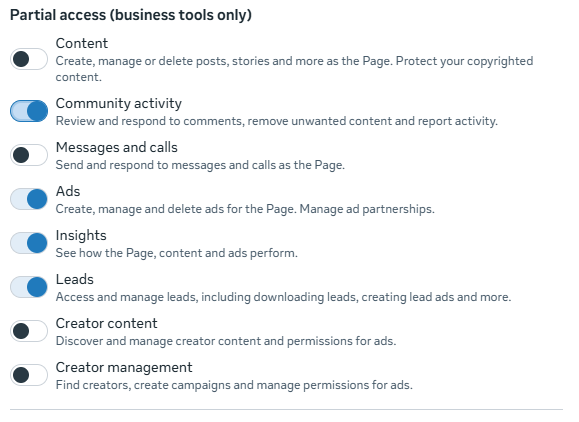
Without Leads access, Loopa cannot forward Meta Lead form leads to you or your integrated system. You would instead retrieve them yourself from the Meta Lead Centre.
Meta (Facebook) Pixel Access
Use our Leadsie Facebook Page and Pixel link.
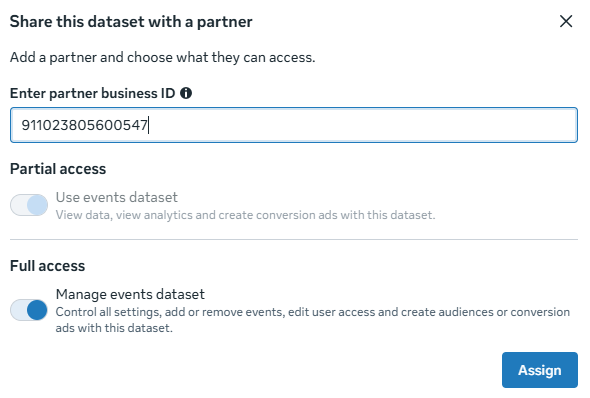
To share Pixel access manually, follow Meta’s instructions. Pixels sit under Data Sources › Datasets and Pixels in Meta Business Manager. When prompted for a Business Manager Id, enter 911023805600547 — our Meta Business Manager account is called “Loopa Technologies Pty Ltd”.
Permissions we require
Manage Events Dataset, so we can dynamically create audiences from your Meta Pixel data.
Google Analytics Access
Use our Leadsie Google Analytics link.
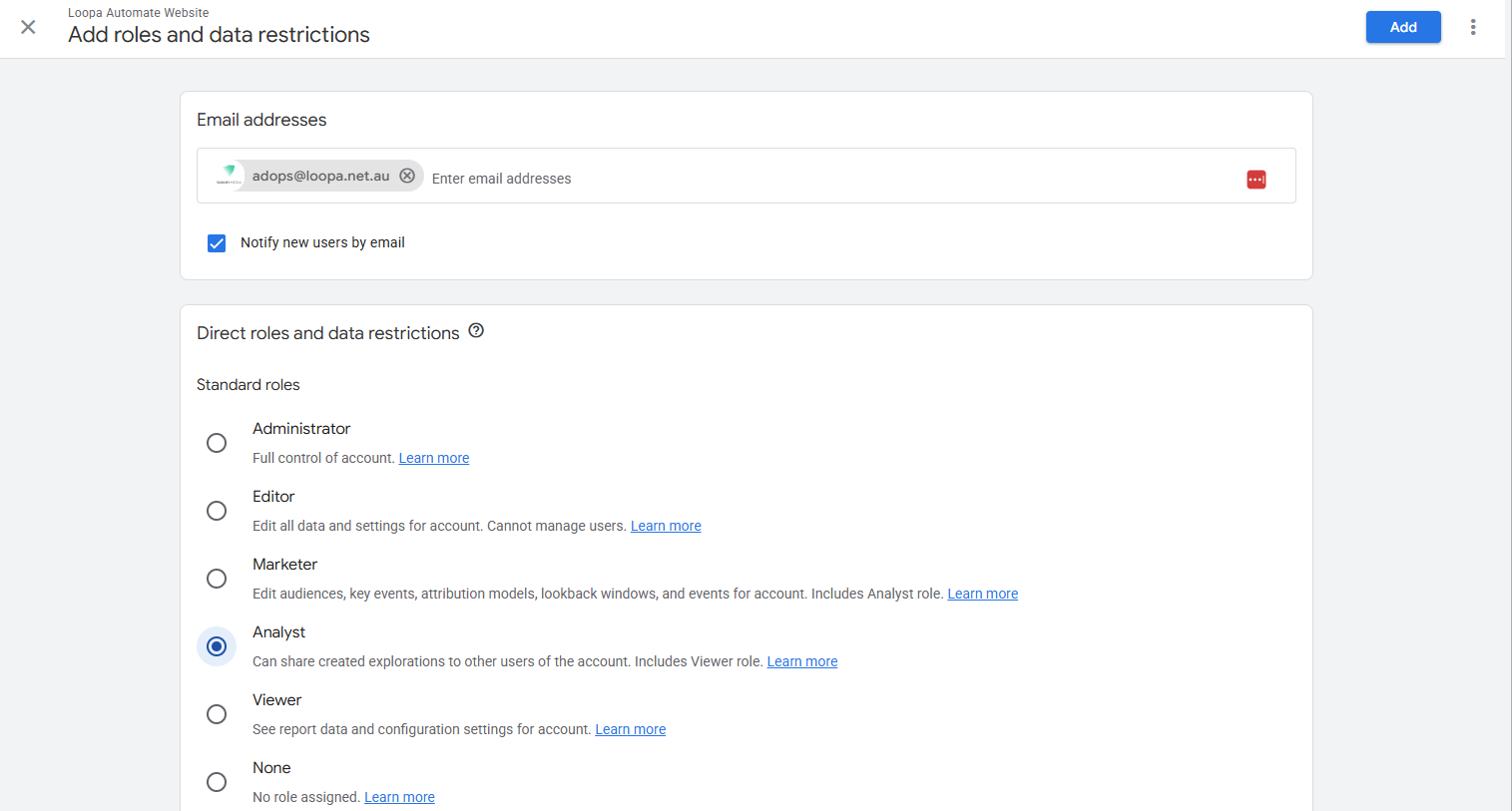
To share Google Analytics access manually, follow Google’s instructions and add adops@loopa.net.au with the Analyst role.
Google Tag Manager Access
Use our Leadsie Google Tag Manager link.
To share Google Tag Manager access manually, follow Google’s instructions and add adops@loopa.net.au to the container with the Publish role.
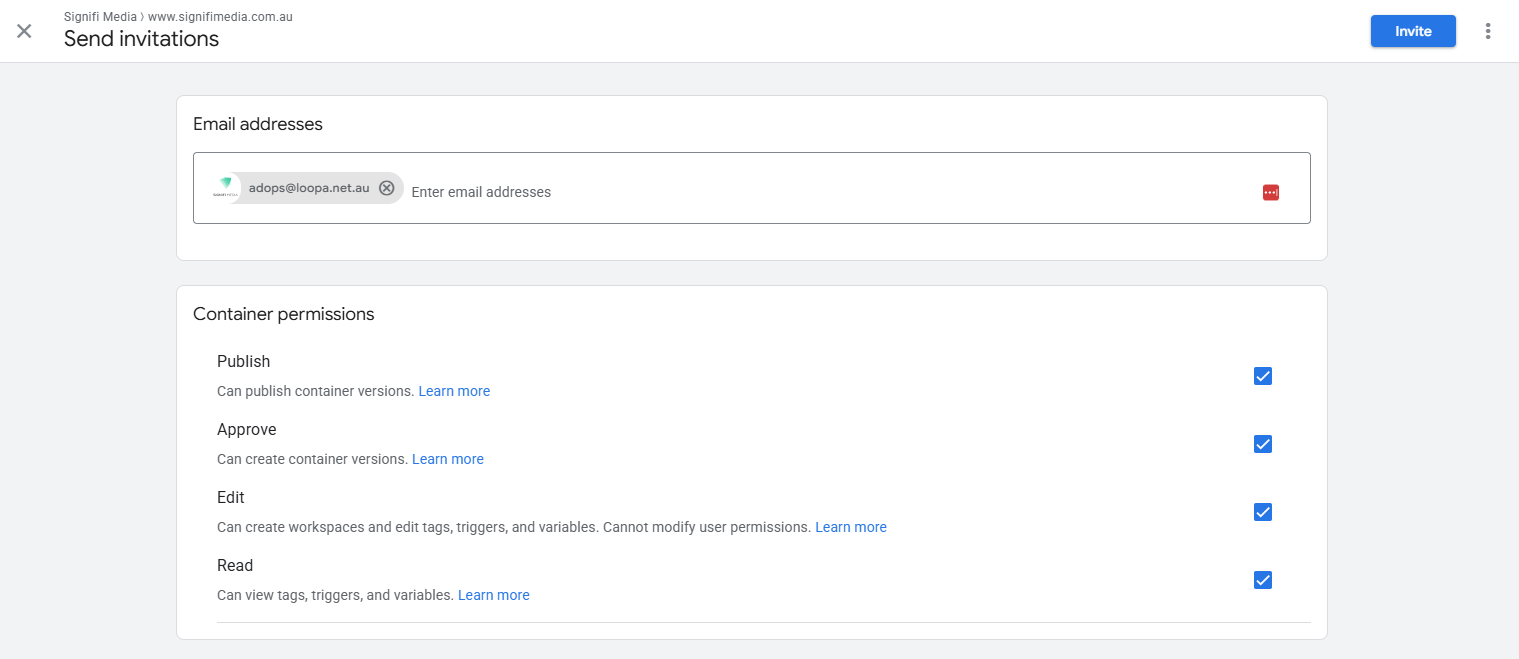
If your team would rather review our tracking before it goes live, assign the Approve role instead.
Vault CRM access
Loopa can push advertising statistics directly back into your VaultRE property data, which helps streamline your vendor reporting.
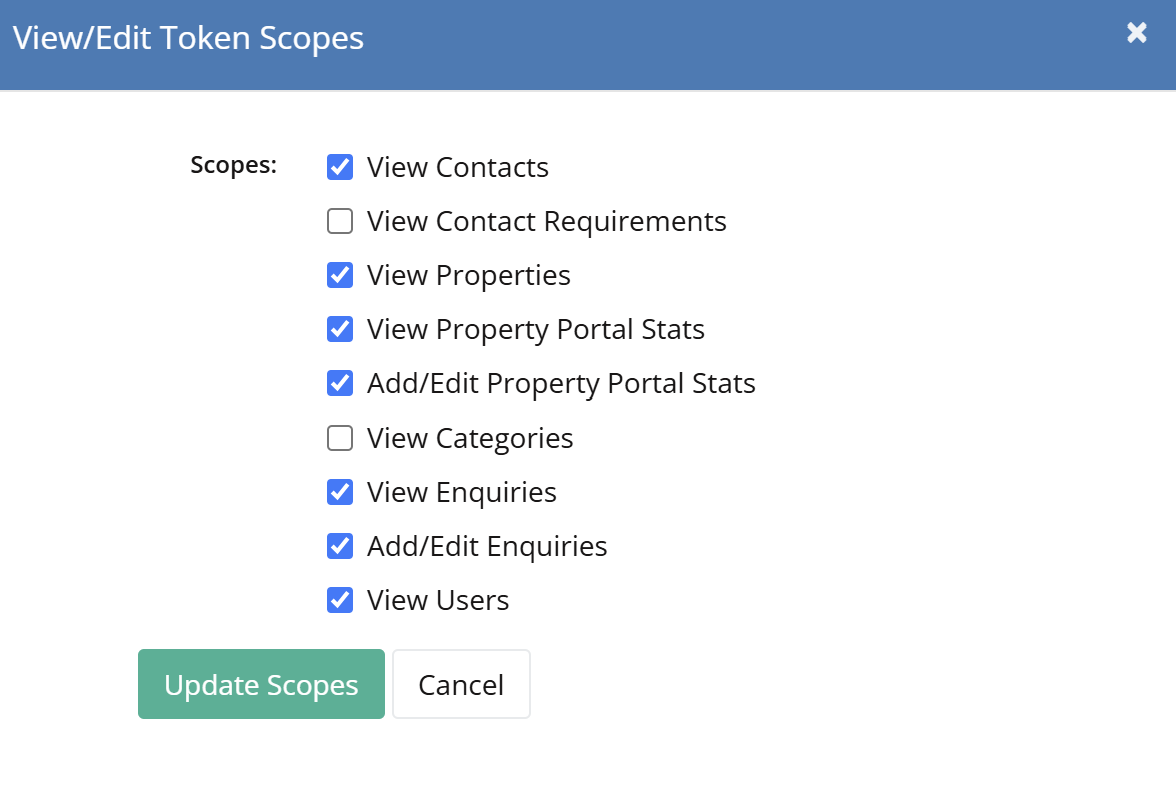
To enable this, a user with sufficient access to the Vault account needs to go to Office Integrations › Third Party Access and add a token for “Loopa” with the following permissions:
Supplying the token
Send the token back to us through the onboarding portal, and tell us which office it is valid for. Each office in a group needs its own token.